

Why is my laptop only plugged in and not charging?
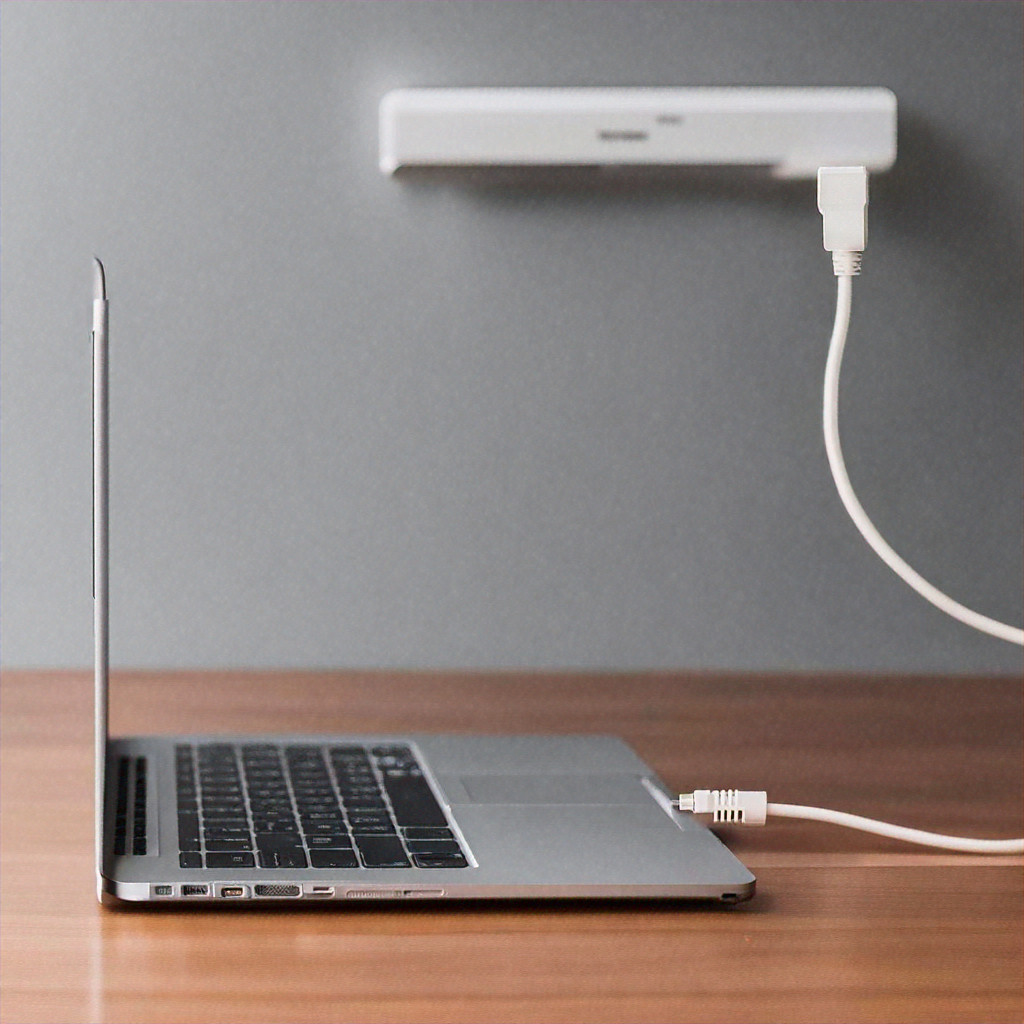
Are you struggling with a laptop that refuses to charge even when it's plugged in? It can be frustrating to find yourself in a situation where your laptop battery is not replenishing its power despite being connected to the charger. But worry not, you're not alone in facing this issue. In this article, we will delve into the reasons why your laptop may exhibit this peculiar behavior and explore some potential solutions to get your device back up and running at full capacity. When your laptop is only plugged in and not charging, it can be attributed to a few common culprits. First and foremost, a faulty AC adapter or power cord could be the root cause. Over time, these components can wear out or get damaged, leading to an ineffective connection and preventing your laptop from charging. Additionally, a damaged battery can also be to blame. After several months or years of use, laptop batteries can degrade, and their ability to hold a charge may diminish significantly. In such cases, the laptop may not charge even when plugged in as the battery is beyond repair. In the following sections, we'll explore further potential reasons behind this issue and discuss ways to troubleshoot and fix the problem.
1. Introduction: Understanding the frustration of having a laptop that is constantly plugged in but not charging. 2. Common causes: Exploring the primary reasons why laptops may exhibit this frustrating behavior. 3. Troubleshooting steps: Providing a step-by-step guide to help users troubleshoot and potentially fix the issue on their own. 4. Battery health and replacement: Discussing the importance of monitoring battery health and when it might be necessary to replace the laptop battery. 5. Seeking professional assistance: Advising when it may be time to bring your laptop to a technician for further diagnosis and expert resolution.
1. Introduction: Understanding the frustration of having a laptop that is constantly plugged in but not charging.
Introduction: Understanding the frustration of having a laptop that is constantly plugged in but not charging Having a laptop is a convenience that many of us rely on for both work and leisure. However, there are times when we may encounter an annoying issue: our laptops seem to be stuck in a state where they are only plugged in but not charging. This frustrating situation can disrupt our workflow, leaving us puzzled and seeking answers. In this article, we delve into the reasons behind this problem, exploring the potential causes and offering some solutions to alleviate this frustration. Our laptops have become an integral part of our daily lives. From business professionals to students, we rely heavily on these devices to stay connected, complete assignments, and manage tasks efficiently. With the increasing demand for portable computing, laptops have become an essential tool, enabling us to work from anywhere, untethered by traditional desktop computers. However, the situation can quickly turn frustrating when our laptops fail to charge properly. We may find ourselves wondering why exactly this issue occurs and what steps we can take to rectify it. The sensations of helplessness and annoyance are only magnified when we are in the midst of an urgent project or desperately need our laptops for an upcoming event. When we plug our laptops into a power source, the expectation is that they will charge and provide us with the necessary power to continue working. Unfortunately, there are instances when this charging process fails to initiate, resulting in a perpetually plugged-in but not charging state. This leaves us grappling for explanations, desperately attempting to troubleshoot the problem. While it may be tempting to assume that the laptop itself is at fault, the issue can be caused by a variety of factors. It could be a technical glitch within the laptop's battery or power management system, or it might be an external factor like a faulty power adapter. Furthermore, software issues, such as outdated drivers or operating system glitches, can also contribute to the problem. Understanding the potential causes of this frustrating scenario is crucial in finding an appropriate solution. By examining each component involved in the charging process, we can identify the most likely culprits and take steps to resolve the issue. From examining the physical components, such as the laptop's battery and charger, to investigating software-related problems, we can narrow down the possibilities and approach troubleshooting with a clearer understanding. In this article, we will delve into the various causes that can lead to a laptop being plugged in but not charging. We will discuss issues such as a faulty battery, a damaged charging cable, or a software glitch. We will also offer practical solutions to these problems to help you get your laptop up and running again. By the end of this article, you will have a better understanding of the common culprits behind this frustrating issue and be equipped to tackle it head-on. Having a laptop that refuses to charge even when plugged in can be incredibly frustrating. The inconvenience it causes can disrupt our workflow and pose problems, especially when we rely on our laptops for work or study. In the following sections of this article, we will explore the possible causes behind this issue and provide guidance on resolving it, ensuring that you can once again enjoy uninterrupted laptop functionality.
2. Common causes: Exploring the primary reasons why laptops may exhibit this frustrating behavior.
2. Common causes: Exploring the primary reasons why laptops may exhibit this frustrating behavior. When you encounter the frustrating situation of your laptop being plugged in but not charging, it can leave you puzzled and wondering what's causing the problem. There are a few common causes that can explain this behavior, and in this section, we'll explore them in detail to help you troubleshoot the issue. 1. Faulty power adapter: One of the most common reasons for your laptop not charging despite being plugged in is a faulty power adapter. Over time, power adapters can wear out or become damaged due to mishandling or accidents. If you've noticed any frayed wires, bent pins, or loose connections on your power adapter, it's likely the culprit behind the issue. In such cases, replacing the power adapter with a new one compatible with your laptop model should resolve the problem. 2. Loose connections: Another common cause for your laptop not charging properly is a loose connection between the power adapter and the laptop's charging port. Sometimes, the plug may not be inserted firmly enough, resulting in a poor connection. To check if this is the case, gently wiggle the plug while it's plugged into your laptop. If the charging indicator flickers or changes, it's a sign of a loose connection. Try removing and reinserting the plug to ensure a secure fit and see if the charging resumes. 3. Battery issues: A faulty or aging battery can also contribute to your laptop not charging. If you've been using your laptop for an extended period, the battery's capacity may degrade, leading to difficulties with charging. You can check the battery health by using built-in system tools or third-party software. If the battery's health is poor, replacing it might be necessary. Additionally, sometimes the battery may become completely drained, causing your laptop to not charge until it reaches a certain threshold. In this case, leave your laptop plugged in for a while, and it should start charging once the battery has gained some charge. 4. System settings and software issues: Certain software or system settings can unintentionally interfere with your laptop's charging process. For instance, some laptops have power management features that limit the battery charging to conserve energy or extend battery lifespan. Check your laptop's power settings and disable any features that might be affecting the charging process. In addition, outdated or incompatible device drivers can also cause charging problems. Make sure all your drivers are up to date to avoid any conflicts. 5. Hardware failures: In rare cases, your laptop may exhibit charging issues due to hardware failures. For example, a defective charging port, motherboard, or charging circuitry can prevent your laptop from charging properly. These hardware failures usually require professional repair or replacement by an authorized technician. If you've already tried the aforementioned troubleshooting steps without success, it's advisable to seek assistance from a qualified service center. In summary, there are several common causes behind laptops only being plugged in and not charging. These include a faulty power adapter, loose connections, battery issues, system settings, and software problems, as well as hardware failures. By systematically investigating each possibility and ruling out potential causes, you'll have a better understanding of why your laptop is behaving this way and find the appropriate solution to resolve the issue.
3. Troubleshooting steps: Providing a step-by-step guide to help users troubleshoot and potentially fix the issue on their own.
3. Troubleshooting steps: Providing a step-by-step guide to help users troubleshoot and potentially fix the issue on their own. Facing the frustrating situation where your laptop is plugged in but not charging can be a cause for concern. However, before you start worrying about potential hardware issues or rushing to a technician, there are some simple troubleshooting steps you can try. Follow this step-by-step guide to hopefully identify and resolve the issue with your laptop's charging. Step 1: Check the power adapter The first and most basic step is to make sure that your power adapter is connected properly. Ensure that both ends of the charger, the one plugged into the wall socket and the one connected to your laptop, are securely plugged in. Sometimes, a loose connection can prevent the charging process from taking place. Additionally, inspect the charging cable for any signs of damage. If you notice any frayed wires or a damaged cable, it might be wise to replace it. Step 2: Restart your laptop and AC adapter Occasionally, a simple restart is enough to fix charging issues. Begin by turning off your laptop completely. Then, unplug the AC adapter from both your laptop and the wall socket. After a few seconds, reconnect the adapter and power it on again. This process can help reset any minor glitches that might be causing the charging problem. Step 3: Examine the power outlet Sometimes, the issue might not be with your laptop at all, but rather with the power outlet you are using. Plug another device, such as a lamp or phone charger, into the same outlet to verify if it is functioning properly. If the other device does not receive power or shows any signs of malfunction, try plugging your AC adapter into a different outlet. It is also crucial to check if the outlet has a switch that might have been accidentally turned off. Step 4: Check for any debris or dust in the charging port Over time, small particles of debris or dust can accumulate in the charging port of your laptop. These obstructions can prevent the charger from plugging in correctly and, as a result, hinder the charging process. Use a flashlight to inspect the charging port for any visible obstructions. If you find any, carefully remove them with a wooden or plastic toothpick, being cautious not to damage the port. Step 5: Update your laptop's battery drivers Sometimes, outdated or corrupted battery drivers can interfere with the charging process. To rectify this, open the Device Manager on your laptop using the Windows search bar, find the "Batteries" category, and expand it. Right-click on the "Microsoft ACPI-Compliant Control Method Battery" option and select "Update driver." Follow the on-screen instructions to complete the update. Step 6: Perform a power cycle Performing a power cycle can help reset various components of your laptop and potentially resolve charging issues. Start by shutting down your laptop completely. Next, unplug the AC adapter and remove the battery if your laptop allows for it. Hold down the power button for about 30 seconds to drain any remaining power. Then, reconnect the battery and plug in the AC adapter before turning on your laptop again. By diligently following these troubleshooting steps, you can work towards identifying and potentially fixing the issue of your laptop only being plugged in but not charging. However, if none of these steps resolve the problem, it may be advisable to seek professional assistance to diagnose and repair the underlying hardware problem.
4. Battery health and replacement: Discussing the importance of monitoring battery health and when it might be necessary to replace the laptop battery.
4. Battery health and replacement: Discussing the importance of monitoring battery health and when it might be necessary to replace the laptop battery. Your laptop's battery is an essential component for its functionality, as it allows you to work or enjoy your favorite content on the go without relying solely on a power outlet. However, like any other electronic device, laptop batteries have a limited lifespan and can degrade over time. In this section, we will discuss the importance of monitoring battery health and explore when it might be necessary to replace your laptop battery. Battery health is a crucial aspect of maintaining your laptop's overall performance and longevity. Over time, lithium-ion batteries, which are commonly used in laptops, undergo chemical reactions that result in a decrease in their capacity to hold a charge. This degradation can lead to several battery-related issues, such as reduced battery life, longer charging times, and even the inability to charge the battery at all. One of the primary factors that affect battery health is the frequency of charging. Repeatedly draining your battery to critically low levels or always keeping it charged at 100% can cause stress on the battery cells and accelerate its degradation. It is recommended to maintain your battery's charge level between 20% and 80% to prolong its lifespan. Another crucial aspect of battery health is temperature. Exposure to high temperatures can have a detrimental effect on your laptop battery. If you frequently use your laptop in hot environments or leave it in a place with excessive heat, such as a hot car, it can lead to accelerated battery deterioration. On the other hand, extremely low temperatures can also affect battery performance temporarily. It is advisable to store and use your laptop in a moderate temperature range to ensure optimal battery health. Regularly monitoring your laptop's battery health is essential in identifying potential issues early on. Most operating systems offer built-in tools that allow you to check your battery's health status. Windows, for instance, provides a battery report that provides detailed information on your battery's capacity, recent usage, and estimated battery life. On macOS, you can find a similar feature under "System Report" in the "About This Mac" section. Monitoring your battery health can help you identify any abnormalities or changes in performance, allowing you to take appropriate actions to maintain or replace your battery if needed. While regular maintenance can prolong your battery's lifespan, there may come a time when replacing the battery becomes necessary. Several signs indicate that your laptop battery may need replacement. One of the most obvious signs is a significant decrease in battery life. If you notice that your laptop's battery now discharges much quicker than it used to, even after adjusting for increased usage, it could be a clear indication that your battery is wearing out. Additionally, if you consistently encounter issues like your laptop shutting down abruptly or not turning on without being connected to a power source, it may be time to consider replacing the battery. These problems could signal a faulty battery that is no longer able to hold a charge or deliver sufficient power to your laptop. In conclusion, monitoring your laptop's battery health is crucial for maintaining its performance and lifespan. By understanding the factors that affect battery health and taking appropriate measures to maintain it, such as keeping a moderate charge level and avoiding extreme temperatures, you can extend your battery's life. However, if you notice significant degradation in battery life or encounter charging issues, it may be necessary to replace your laptop battery to restore optimal performance.
5. Seeking professional assistance: Advising when it may be time to bring your laptop to a technician for further diagnosis and expert resolution.
5. Seeking professional assistance: Advising when it may be time to bring your laptop to a technician for further diagnosis and expert resolution. While troubleshooting your laptop's charging issues on your own can be helpful, there may come a time when seeking professional assistance becomes necessary. Here, we will discuss when it may be the right time to take your laptop to a technician for further diagnosis and expert resolution. 1. Recurring charging problems: If you find yourself frequently dealing with the same charging issues, such as your laptop consistently failing to charge despite being plugged in, it might be a sign that there is an underlying hardware problem that requires professional attention. A qualified technician will have the necessary expertise and tools to identify and resolve any complex hardware issues that could be causing the repeated charging problems. 2. Physical damage: If your laptop has suffered from physical damage, such as a fall or liquid spill, it's crucial to seek professional assistance immediately. Even if the laptop appears to be functioning normally, there could be internal damage that is affecting the charging system. A technician will be able to assess the extent of the damage and carry out any necessary repairs to ensure proper charging functionality. 3. Limited technical knowledge: Not everyone is a tech expert, and that's perfectly fine. If you have exhausted all basic troubleshooting methods to no avail and find yourself unsure about how to proceed, it's wise to consult with a professional technician. They will have a deep understanding of laptop charging systems and can guide you through any necessary steps or repairs. 4. Warranty coverage: If your laptop is still within the warranty period, it is advisable to let a professional handle any charging issues. Attempting to fix the problem yourself may void the warranty, leaving you responsible for any future repairs or expenses. Technicians trained by the laptop's manufacturer will have the necessary expertise to diagnose and resolve issues while keeping your warranty intact. 5. Complex internal components: Laptops are intricate devices with numerous internal components. When it comes to charging problems, the issue may lie within the motherboard, the charging port, or other complex components that require specialized knowledge to diagnose and repair. A professional technician will possess the tools and expertise to open up your laptop, identify the specific problem areas, and provide an effective solution. While seeking professional assistance may incur additional costs, it can save you time and frustration in the long run. Technicians possess the specialist knowledge and equipment required to diagnose and resolve complex charging issues that might be beyond the scope of typical troubleshooting methods. Remember, it's important to choose a reputable and trustworthy technician or service center. Look for recommendations, reviews, or certifications that indicate their expertise in laptop repairs. Taking the time to find a reliable technician will ensure that your laptop receives the necessary attention and repairs, maximizing its lifespan and charging capabilities. In conclusion, if you encounter recurring charging problems, experience physical damage, lack technical knowledge, have warranty coverage, or suspect complex internal issues, it's a sign that it may be time to seek professional assistance. By consulting with a qualified technician, you can gain peace of mind knowing that your laptop is in capable hands and that any charging issues will be effectively resolved.
In conclusion, if you find yourself in a situation where your laptop is plugged in but not charging, there are several potential reasons for this frustrating scenario. Firstly, check the power source and ensure it is functioning properly. If it's working fine, the issue might lie within the charging cable or the laptop's battery. In some cases, software or driver problems can also prevent your laptop from charging. Remember to troubleshoot and eliminate simpler possibilities before rushing to more complex solutions. Ultimately, if you're unable to resolve the issue, seeking assistance from a professional technician is always a good idea. Don't fret, though! With a bit of patience and troubleshooting, you can usually get your laptop back up and running smoothly again.


Ask anything 👇