

What to do if your HP laptop won't turn on or charge?
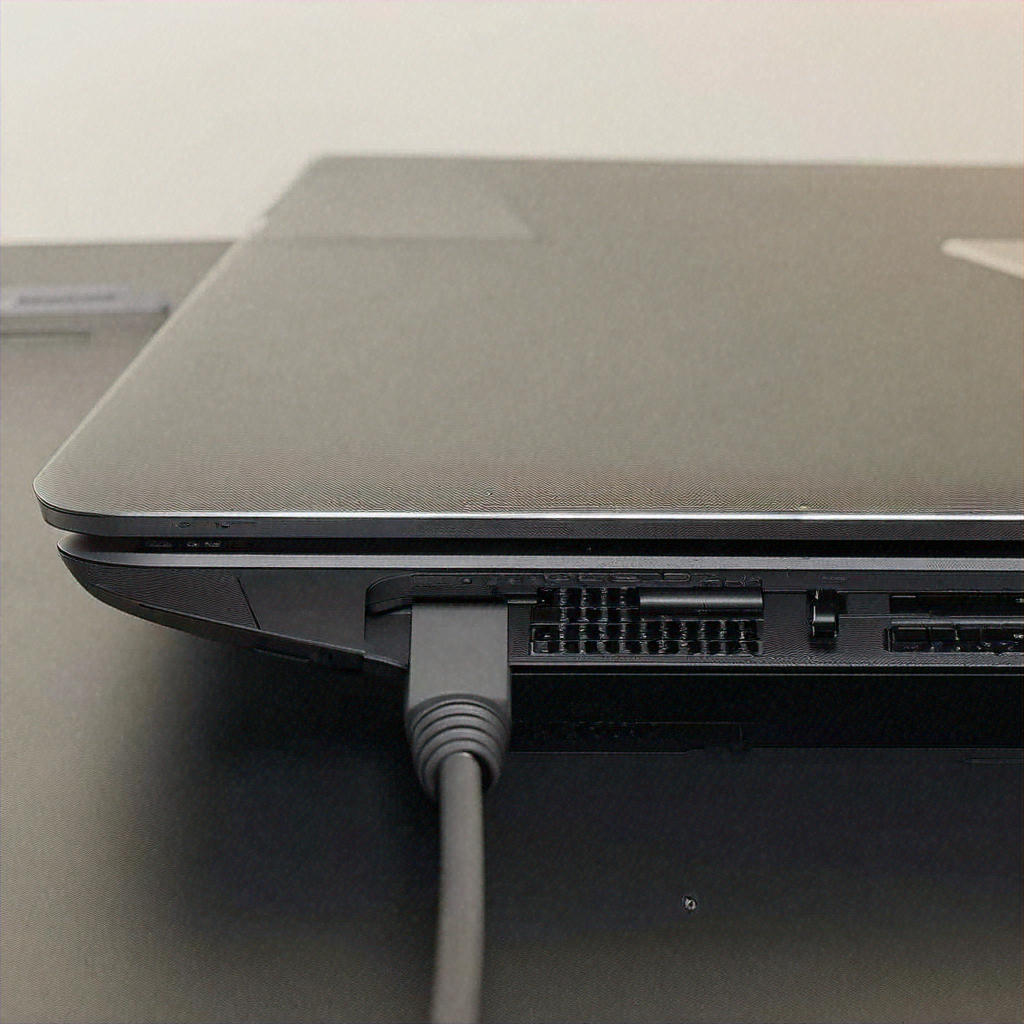
If you’re an HP laptop owner, you may have experienced the frustrating moment when your device simply refuses to turn on or charge. This can be quite worrisome, especially if you rely on your laptop for work or personal use. However, fear not, as there are several potential solutions to this common problem that you can try at home before seeking professional help. In this article, we will provide you with some troubleshooting tips and step-by-step instructions on what to do if your HP laptop won't turn on or charge.
1. Introduction: Troubleshooting steps when your HP laptop won't turn on or charge. 2. Check the power source and adaptor connection. 3. Perform a hard reset to reset the laptop's hardware. 4. Try a different power cable or adaptor to ensure the issue isn't with the charger. 5. Seek professional assistance or contact HP support if the issue persists.
1. Introduction: Troubleshooting steps when your HP laptop won't turn on or charge.
Introduction: Troubleshooting Steps When Your HP Laptop Won't Turn On or Charge When you rely on your HP laptop for work, entertainment, or staying connected with loved ones, it can be extremely frustrating and stressful when it suddenly refuses to turn on or charge. Don't panic just yet, as there are several troubleshooting steps you can take to determine the cause and hopefully resolve the issue on your own. In this section, we will guide you through a set of troubleshooting steps to help you diagnose and potentially fix the problem when your HP laptop won't turn on or charge. First things first, before diving into the troubleshooting process, make sure your HP laptop is not connected to any power sources, such as the charger or the docking station. This ensures a safe environment for you to work on your laptop. It's always a good idea to start with basic troubleshooting steps that often fix such issues. Begin by pressing and holding the power button for a few seconds, usually around 10 seconds. This process is known as a hard reset and can help resolve any temporary glitches or problems that might be preventing your laptop from turning on. If the laptop remains unresponsive, the next step is to check the power adapter and the power source. Make sure the charger is securely connected to both your laptop and the power outlet. Check for any visible damages or frayed cables on the charger, as this could interfere with the charging process. If you have another HP laptop or a compatible charger, try substituting it to see if the charging issue persists. If the power adapter seems to be functioning properly, proceed to inspect the battery. If your HP laptop has a removable battery, ensure it is properly inserted into the laptop and latched securely. If you notice any signs of damage or corrosion on the battery or battery contacts, it may need to be replaced. Sometimes, accumulated static electricity can also cause problems with your laptop's ability to turn on or charge. To dissipate any built-up static, disconnect the power adapter and remove the battery (if it's removable), then press and hold the power button for about 15 seconds. Reconnect the power adapter, reinsert the battery (if applicable), and try turning on your laptop again. If your laptop still won't turn on or charge, it could be due to a faulty hardware component. In such cases, it is recommended to reach out to HP support or a qualified technician for further assistance. They can guide you through more advanced troubleshooting steps or help with any necessary repairs or component replacements. In conclusion, when your HP laptop refuses to turn on or charge, it's important not to panic but instead follow a systematic approach to identify and resolve the issue. Start with a hard reset, check the power adapter and the battery, clear any static charge, and if all else fails, seek professional help. By following these troubleshooting steps, you can increase your chances of resolving the problem and getting your HP laptop back up and running again.
2. Check the power source and adaptor connection.
2. Check the power source and adapter connection. One of the first things you should do if your HP laptop won't turn on or charge is to check the power source and the connection to your laptop's power adapter. Sometimes, the issue might not be with the laptop itself, but rather with the power supply. First, ensure that the power outlet you are using is working correctly. You can try plugging in another device, such as a phone charger or a lamp, to see if it receives power. If the outlet seems to be the problem, try another one in a different location to rule out any issues with the power source. Next, examine the power adapter and its connection to the laptop. Make sure the power cord is securely plugged into both the adapter itself and the laptop's power port. Sometimes, the connection might become loose over time, causing charging or power issues. Disconnect the power adapter from your laptop and carefully inspect the power cord for any fraying or damage. Also, check the power adapter for any signs of physical damage. If you notice any damage to the power cord or the adapter, it may be necessary to replace one or both of them. You can contact HP support or visit an authorized service center to obtain the appropriate replacement parts. Furthermore, try connecting the power adapter to a different electrical outlet to determine if the issue lies with the power supply. If your laptop starts charging or turns on after connecting it to a different outlet, then the original power source might be the problem. In addition, it's essential to ensure that your power adapter matches the specifications of your HP laptop. Using an incompatible adapter can result in insufficient power supply or damage to your laptop. Double-check the model number and voltage requirements of your laptop, and compare them with the information provided on the power adapter. If they don't match, you will need to purchase a compatible adapter to avoid any potential issues. Sometimes, power-related issues can also be caused by a faulty power adapter. If you have access to a spare power adapter, try using it instead to see if the laptop charges or turns on. If it works, then you can conclude that the original power adapter is defective, and you should consider buying a replacement. Finally, it's worth mentioning that some HP laptops have a removable battery. In such cases, it's a good idea to remove the battery, disconnect the power adapter, and then press and hold the power button for a few seconds to discharge any residual power. After that, reconnect the power adapter (without the battery) and try turning on the laptop. If it powers up without the battery, it indicates a potential issue with the battery itself, and you may need to replace it. By checking the power source and adapter connection thoroughly, you can eliminate potential problems related to the power supply. If the issue persists, you can move on to the next troubleshooting steps to uncover any other underlying causes preventing your HP laptop from turning on or charging.
3. Perform a hard reset to reset the laptop's hardware.
3. Perform a hard reset to reset the laptop's hardware. Has your HP laptop suddenly become unresponsive? Perhaps it won't turn on or charge, leaving you feeling frustrated and uncertain about what steps to take next. Before you start panicking or assuming the worst, there is a simple troubleshooting step you can try: performing a hard reset. A hard reset is often an effective solution when your laptop is experiencing hardware-related issues. It essentially involves clearing any residual power from the system and resetting the hardware components. This process can help resolve various problems, including when your HP laptop refuses to turn on or charge. So, how do you perform a hard reset on your HP laptop? Follow these steps, and hopefully, this troubleshooting technique will bring your laptop back to life: 1. Disconnect all external devices: Start by unplugging any connected external devices, such as USB drives, printers, or external monitors. These devices can sometimes interfere with the laptop's startup process or cause power-related issues. By removing them, you can eliminate any potential sources of the problem and focus solely on resolving the laptop's functionality. 2. Power off the laptop: Ensure that your laptop is turned off completely. If necessary, hold down the power button for 10 to 15 seconds to force it to shut down. This step is vital to ensure a complete reset of the hardware components. 3. Remove the AC adapter and battery: Next, unplug the AC adapter from your laptop and detach the battery. Some HP laptops have batteries that are not easily removable, so if you're unable to remove the battery, proceed to the next step without doing so. 4. Press and hold the power button: With the AC adapter and battery disconnected, press and hold the power button on your laptop for about 15 seconds. This action helps discharge any residual power left in the system. Holding the power button down for an extended period ensures that all the components are completely discharged. 5. Reconnect the AC adapter and battery (if removable): Reconnect the AC adapter back to your laptop and plug it into a functioning power outlet. If you've removed the battery, carefully reinsert it at this time. The AC adapter will provide power to the laptop, whereas the battery ensures uninterrupted usage in case of power fluctuations. 6. Power on the laptop: Finally, press the power button once to turn on your laptop. If all goes well, your HP laptop should boot up as expected, and you should see the appropriate charging indicator light up. This process essentially resets the laptop's hardware, which can help resolve any temporary glitches or power-related problems. Performing a hard reset is often an effective first step in troubleshooting an HP laptop that won't turn on or charge. It helps eliminate any temporary issues that may have been causing the problem. However, if your laptop still fails to power on or charge after the hard reset, it may be indicative of a deeper hardware issue. In such cases, it's recommended to reach out to HP customer support or consult a professional technician for further assistance. Remember, every now and then, electronic devices can encounter minor glitches. By performing a hard reset, you can often resolve these issues and get your HP laptop back up and running smoothly again.
4. Try a different power cable or adaptor to ensure the issue isn't with the charger.
One of the most frustrating experiences when using a laptop is when it simply refuses to turn on or charge. These issues are not uncommon, and they can occur for a variety of reasons. In this section, we will explore a possible solution that might help you get your HP laptop up and running smoothly again. 4. Try a different power cable or adaptor to ensure the issue isn't with the charger. When your HP laptop fails to turn on or charge, the charger could be the culprit behind the problem. There are instances when the charger becomes faulty or no longer functions as it should. To determine whether this is the case, you should try using a different power cable or adaptor. Firstly, locate another power cable that is compatible with your HP laptop model. If you don't have another cable on hand, try borrowing one from a friend or family member who uses a similar laptop. Ensure that the charger features the same voltage and amperage output as your original charger. Using an incompatible charger could potentially cause further damage to your laptop. Once you have a different power cable or adaptor, unplug the original charger from both your laptop and the power outlet. Then, connect the new cable to your laptop and plug it into a power source. Wait for a few minutes to see if there are any signs of activity. If your laptop starts charging or you notice LED lights indicating power consumption, it is likely that the issue lies with your original charger. In this case, your charger may need to be replaced. Contact the manufacturer's customer support or visit an authorized service center to find a suitable replacement or arrange for repairs. On the other hand, if your laptop still does not show any signs of life, even with the new power cable, it may indicate a more complex underlying issue. In such situations, it is recommended to proceed with further troubleshooting or seek professional assistance. While testing a different power cable or adaptor may seem like a simple step, it can help you isolate the problem source and avoid unnecessary frustration. Sometimes, the charger itself is the only culprit responsible for a laptop's failure to turn on or charge. It is important to note that this solution only addresses the issue at the surface level. If your laptop continues to experience power-related problems even with a different charger, it could be a sign of a more intricate hardware issue, such as a faulty battery or motherboard. In such cases, it is advisable to consult with a professional technician to diagnose and resolve the problem appropriately. To summarize, if your HP laptop won't turn on or charge, it is worth trying a different power cable or adaptor to rule out any issues with the charger. By doing so, you can quickly identify if the charger itself is causing the problem. However, if the issue persists after using a different charger, it may be necessary to explore other troubleshooting options or seek professional help.
5. Seek professional assistance or contact HP support if the issue persists.
5. Seek professional assistance or contact HP support if the issue persists. If, after trying the previous troubleshooting steps, your HP laptop still refuses to turn on or charge, it may be time to seek professional assistance or contact HP support. Remember, it's always a good idea to have experts take a look at your device if you're unable to resolve the issue on your own. Here are a few options to consider: Firstly, you may want to reach out to a local computer repair shop. These establishments employ skilled technicians who specialize in fixing various computer-related issues. They possess the technical knowledge and experience needed to diagnose and resolve the problem with your HP laptop. A qualified technician will be able to identify hardware or software issues, and provide an appropriate solution. If you're unsure about the options in your local area, you can always turn to HP support. HP offers a range of support services to assist customers with their laptop issues. They have a dedicated support website where you can find a wealth of resources, including troubleshooting guides, drivers, and software updates. The support website is an excellent starting point, as it may contain a solution for your specific problem. Additionally, HP provides various ways to contact their support team directly. You can initiate a chat session with their support agents, who will guide you step-by-step and help troubleshoot the issue. This method can be beneficial if you prefer interactive assistance or have specific questions that need answering. Alternatively, you can give them a call on their customer support helpline. Speaking to a representative can be useful in situations where the problem is complex or requires more in-depth support. When reaching out to HP support, it's important to provide them with all the relevant information about your laptop and the troubleshooting steps you've already taken. This will help them understand the situation better and offer a more accurate solution. Make sure to keep any error messages, serial numbers, and model information at hand when contacting support. The more details you can provide, the faster and more efficiently they can address the issue. Once you've established contact with HP support, they may determine that your laptop needs to be repaired or replaced. In such cases, they will guide you through the entire process, including warranty claims or out-of-warranty repair options. If your laptop is still under warranty, HP will arrange for a repair or replacement at no additional cost. However, if your warranty has expired, they may offer repair services for a fee. It's worth noting that seeking professional assistance or contacting HP support should be considered the last resort. While it's always wise to consult experts for complex issues, it's equally important to exhaust all possible solutions on your own. By following the previous troubleshooting steps, you can eliminate common problems and save time and money. In conclusion, if your HP laptop refuses to turn on or charge even after attempting basic troubleshooting, it's advisable to seek professional assistance or contact HP support. Local computer repair shops or HP's dedicated support services can provide the expertise and guidance necessary to resolve the issue. Remember to provide them with accurate information and be prepared for possible repair or replacement options. By taking these steps, you can ensure that your HP laptop gets the attention it needs to be up and running again.
In conclusion, dealing with a HP laptop that won't turn on or charge can be frustrating, but there are several steps you can take to troubleshoot and potentially resolve the issue on your own. Firstly, make sure to check the power source, battery, and charging cable for any signs of damage or malfunction. Try performing a hard reset by removing the laptop's battery and power cord, holding the power button down for a few seconds, and then reconnecting everything. If that doesn't work, try connecting your laptop to a different power source or using a different charging cable. If none of these steps work, it might be necessary to contact HP's customer support or take your laptop to a certified technician for further assistance. Remember, patience and perseverance are key when it comes to resolving technical issues, and sometimes professional help is needed.


Ask anything 👇